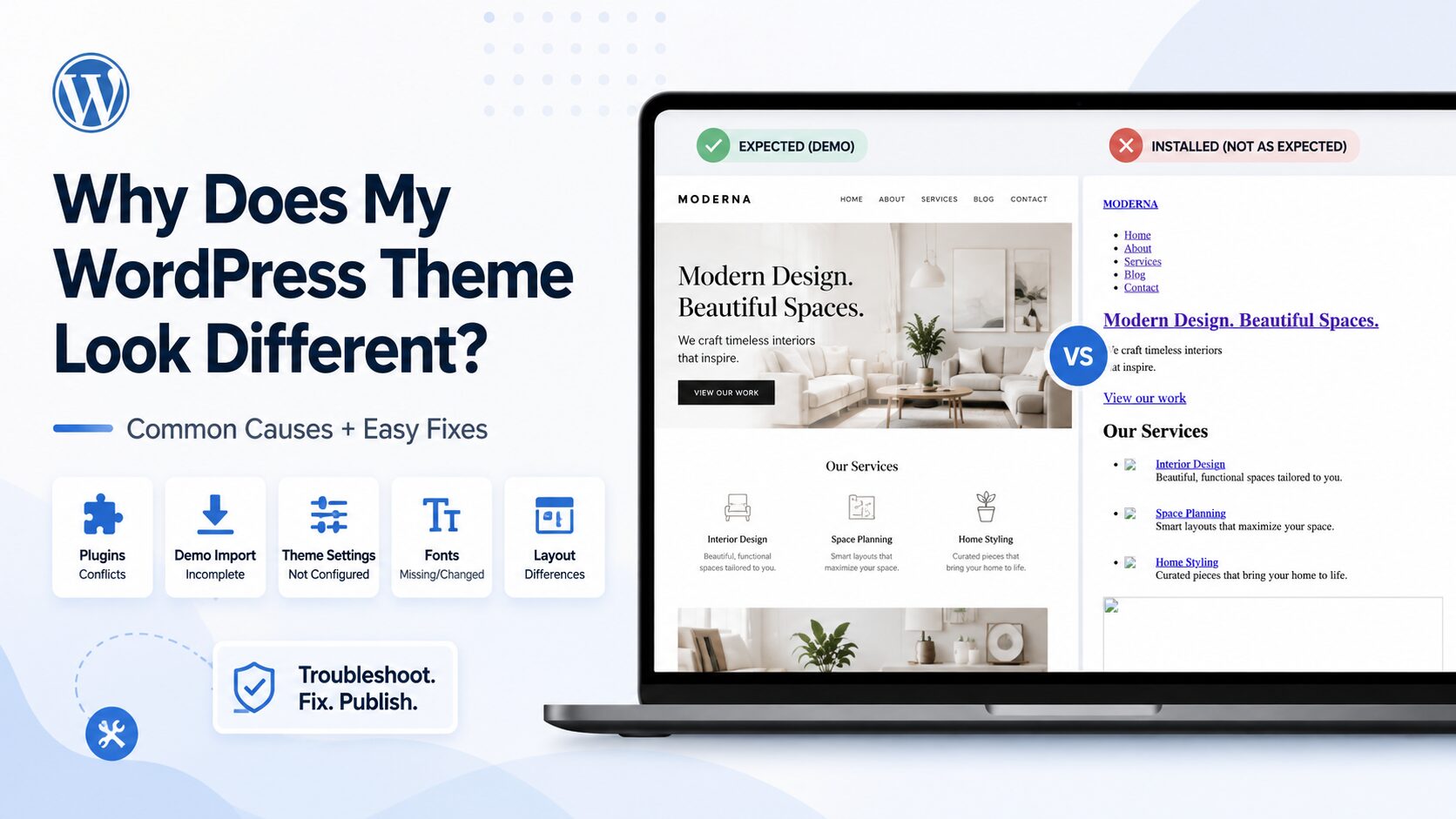
You found the theme. It looked exactly right in the preview — clean layout, great spacing, images in all the right places. You clicked install, hit activate, and refreshed your site.
It’s… not the same thing.
Colors are slightly off. A section is missing. An image looks stretched or replaced entirely. If you’ve ever felt like WordPress pulled a bait-and-switch on you, you’re not imagining it — this is one of the most common frustrations in WordPress, and it happens for very specific, very fixable reasons.
The good news: once you understand why it happens, it’s usually a quick fix rather than a redesign.
The #1 Reason: The Preview Was Never “Just a Theme”
Here’s the part most people don’t realize — theme previews are rarely just a theme. They’re a fully staged, styled website built on top of a theme.
That polished demo you fell in love with usually includes:
- – Custom-cropped, professionally shot images placed in every section
- – Real (or realistic) copy instead of placeholder text
- – Pages, menus, and widgets already built out
- – Theme options and color settings already configured, not left at default
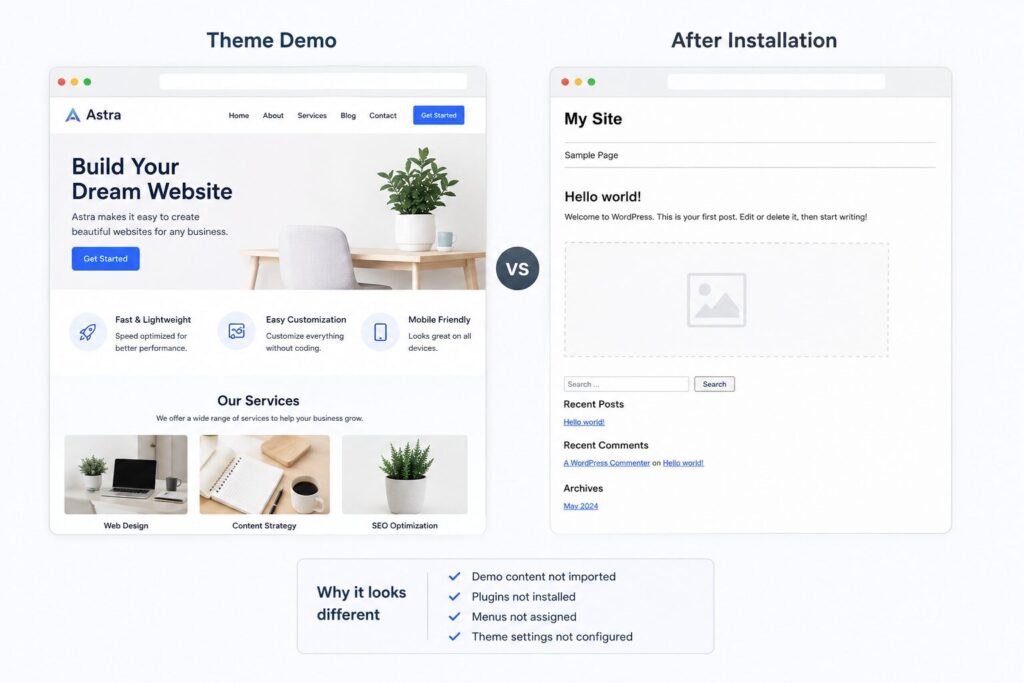
What you actually download is the structure — the code that renders a layout — not the finished furniture sitting inside it. Unless the theme includes a one-click demo importer (and many either don’t, or bury it behind extra plugins), none of that staged content comes with it. So your fresh install looks like an empty version of the showroom, not the showroom itself.
Does This Still Happen With AI-Generated Themes?
This is where AI website builders like PressMeGPT change the equation.
Traditional themes are built once, generically, then sold to thousands of different people who each try to force their own content into someone else’s demo. AI-generated themes flip that: the theme is built around your actual content from the start, so there’s no separate “demo version” to fall short of. When you generate a WordPress theme with AI, what you’re previewing during the build process is much closer to what actually ships in the exported theme file, because there’s no demo-import step, and typically no required plugins standing between what you designed and what gets installed.
That said, “closer to identical” isn’t the same as “guaranteed pixel-perfect,” and the area most likely to shift slightly is images. A few reasons why:
- – Stock and AI-suggested images used during design. If you used integrated stock photography or AI-suggested images while building your theme rather than uploading your own final assets, those placeholder-style images can look different once you swap them for your actual brand photos after install.
- – Image compression and resizing on export. Like most theme-generation and page-builder tools, exported files are typically optimized for web performance — which can mean images are resized, compressed, or reformatted compared to the raw version you uploaded, occasionally shifting a crop or aspect ratio slightly.
- – Logo and upload timing. If you uploaded a logo or image mid-way through building versus at the very start, it’s worth double-checking that the final export actually reflects the last version you approved, not an earlier draft.
- – Rendering environment differences. A design canvas and a live WordPress install don’t always render fonts, spacing, or image scaling in exactly the same way, especially the first time a new theme touches your specific hosting environment.
None of this means the AI-generated theme is broken — it just means images are worth a quick manual check after install, the same way you’d proof a document before sending it.
Other Common Culprits (For Any Theme, AI-Generated or Not)
If your layout looks structurally different — not just a little off, but genuinely broken or mismatched — the cause is usually one of these:
Your “Front Page” setting doesn’t match the theme. Go to Settings → Reading and check what “Your homepage displays” is set to. Many themes expect a specific static page as the homepage, and if that setting still points to your latest posts (or the wrong page), the homepage layout won’t match what you saw in the preview at all.
Old image thumbnail sizes are still active. WordPress stores thumbnail dimensions under Settings → Media. If you previously used a different theme, those old sizing rules can carry over and make new images crop or stretch oddly until you update the settings (and regenerate thumbnails for existing images).
A required plugin isn’t installed or active. This is a big one for traditional marketplace themes — many rely on a specific page builder, slider plugin, or icon library to render sections properly. If that plugin isn’t installed and activated, entire sections can silently disappear.
Caching is showing you a stale version of the site. Browser cache, a caching plugin, or a CDN can all serve an outdated version of your CSS after a theme change. Clear all three, then check the site in an incognito or private browser window before assuming anything is actually broken.
Your hosting environment renders things differently. PHP version mismatches, disabled server extensions, or restrictive hosting configurations can subtly change how a theme displays compared to the environment it was demoed or built in.
Another plugin is quietly conflicting. A plugin injecting its own CSS or JavaScript can clash with your new theme’s styling. Deactivating plugins one at a time (on a staging copy, ideally) will usually reveal the culprit fast.
A Quick Checklist to Make It Match
- Clear your browser cache, plugin cache, and CDN cache, then reload in an incognito window.
- Check Settings → Reading to confirm the correct homepage is set.
- Check Settings → Media for thumbnail sizing, and regenerate thumbnails if you switched from another theme.
- Confirm any required plugins are installed and active (for traditional themes).
- Swap out any placeholder, stock, or draft images for your final, approved assets, and confirm the logo reflects your latest upload.
- Test the live site in the same browser and viewport size you used during the design/preview stage, then check mobile separately.
- If something still looks broken rather than just “slightly off,” deactivate other plugins one at a time to isolate a conflict.
The Bottom Line
A theme looking different after install isn’t usually a sign that something went wrong — it’s almost always a gap between a staged preview and a live, empty site waiting for your content and settings to catch up. AI-generated themes close most of that gap by building around your real content instead of a generic demo, but images and final assets are still worth a manual once-over before you call the site done. A five-minute check against this list will resolve the vast majority of “why doesn’t this look right” moments — no redesign required.