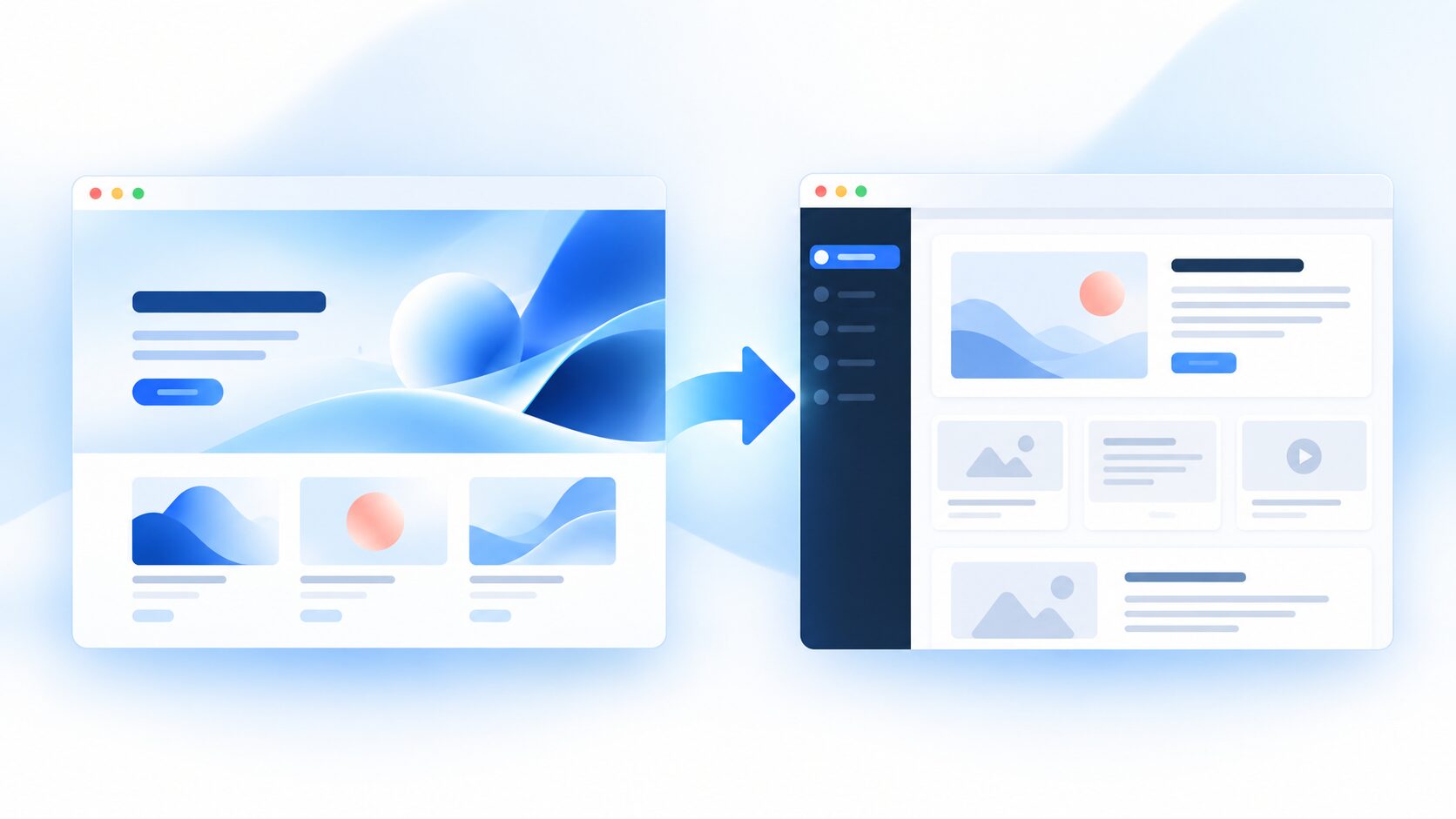
AI website builders make it possible to create an impressive website in minutes. Tools such as Lovable, Framer, Cursor, Bolt, v0, Wix AI, and other AI-powered builders can help you turn an idea into a polished design without starting from a blank canvas.
But a prototype is not always the best long-term home for a business website.
As your website grows, you may need better content management, WordPress plugins, stronger SEO control, flexible hosting, ecommerce, forms, blogging, or a workflow your team already understands. That is where WordPress becomes useful.
The problem is that rebuilding an AI-generated website manually in WordPress can take hours or days. You may need to recreate the layout, typography, colors, sections, images, navigation, headers, and footers from scratch.
PressMeGPT helps reduce that work. You can use an existing website or design as the starting point, let AI recreate it as a WordPress theme, refine the result with prompts, and export it for installation on your own WordPress site.
This guide explains how to convert an AI-built website to WordPress using PressMeGPT, what the process includes, what it does not convert automatically, and what to check before launching.
Quick answer: Publish or open the website you want to move, copy its accessible URL into PressMeGPT, generate the WordPress version, refine the design with AI prompts, choose Gutenberg, Classic, or Elementor output where supported, export the theme, and install it in WordPress.
Why convert an AI-built website to WordPress?
AI builders are excellent for ideas, prototypes, landing pages, and fast visual experimentation. WordPress is often stronger as the long-term content and publishing system behind a growing website.
1. You get a real content management system
WordPress gives you a structured way to manage pages, posts, categories, tags, media, authors, menus, and other content. That is important when a website is updated regularly by more than one person.
Instead of editing a design file or asking an AI tool to regenerate a page, your team can use the WordPress dashboard to publish and organize content.
2. You can extend the website with plugins
WordPress has a large ecosystem for forms, SEO, analytics, ecommerce, memberships, bookings, security, backups, email marketing, and many other tasks.
Moving the visual foundation to WordPress gives you more freedom to choose the tools that fit your business instead of being limited to the features built into the original AI platform.
3. You have more control over hosting
An exported WordPress theme can be installed on compatible hosting that you control. You can choose your hosting provider, staging environment, backup system, caching setup, and maintenance workflow.
4. You can manage SEO more deeply
WordPress gives you control over page content, headings, URLs, internal links, images, metadata, redirects, structured data through plugins or custom development, and other parts of your search strategy.
A converted theme does not automatically guarantee better rankings. It gives you a more flexible foundation for building and maintaining an SEO-friendly website.
5. You own the exported theme
PressMeGPT is designed to generate downloadable WordPress themes. Once you export the theme, you can install it, customize it, and host it independently according to the product’s terms.
What types of AI-built websites can PressMeGPT convert?
PressMeGPT can use an existing website or design as a visual starting point. This may include websites created with:
- Lovable or Lovable.dev, Framer, Wix or Wix AI, v0 and similar AI interface builders, Websites designed with Gemini or Claude, Cursor-generated websites, Bolt and other tools that produce a published web experience, Custom websites you own or have permission to recreate.
The most reliable workflow starts with a publicly accessible URL or a supported design input that PressMeGPT can inspect. If the website is private, behind a login, or dependent on a private application environment, you may need to publish a reviewable version first.
An important limitation
PressMeGPT should not be treated as a one-click converter for every line of React, Angular, Vue, TypeScript, database, or server-side application code.
It recreates the website’s visual design and generates WordPress-ready output. Complex application logic—such as user authentication, private dashboards, real-time data, custom APIs, databases, advanced filters, or payment logic—may require WordPress plugins, integrations, or custom development after the theme is exported.
Only convert designs and websites you own or have permission to use.
How PressMeGPT converts a website to WordPress
The workflow is designed to replace a large amount of manual rebuilding with an AI-assisted process:
- Prepare the original website or design.
- Import its accessible URL into PressMeGPT.
- Let AI analyze and recreate the visual structure.
- Refine the design with prompts.
- Add or convert additional pages and posts.
- Choose the WordPress output that matches your editing workflow.
- Export and install the theme.
- Connect WordPress plugins, media, forms, SEO, and business functionality.
Step-by-step: convert an AI website to WordPress with PressMeGPT
Step 1: Prepare the website you want to convert
Before importing the design, review the original website carefully. Make sure the version you want to recreate has the correct:
- – Logo and brand colors
- – Header and navigation
- – Hero section
- – Main page sections
- – Images and videos
- – Buttons and calls to action
- – Footer
- – Mobile layout
If the site is still changing, wait until the main visual direction is stable. Otherwise, you may spend credits converting a version that you will immediately replace.
Also make a list of the pages you need. For example:
- – Home
- – About
- – Services
- – Pricing
- – Blog
- – Contact
- – Privacy Policy
Step 2: Open PressMeGPT and start a conversion project
Visit PressMeGPT and start a new project. Instead of describing a completely new website, choose the workflow that uses an existing website or design as inspiration or as the source for conversion.
Paste the accessible URL of the website you want to recreate. PressMeGPT can then use the visible design as a reference for the WordPress version.
For a website with multiple routes, make sure the important pages are available and identify which pages should be recreated first. Depending on the current workflow and plan, you may convert multiple pages or add additional pages individually after the homepage is generated.
Step 3: Let PressMeGPT generate the WordPress design
PressMeGPT analyzes the visible structure of the website and creates a WordPress-ready design direction. This can include elements such as:
- – Header and footer layout
- – Page sections and content hierarchy
- – Color palette
- – Typography direction
- – Buttons and spacing
- – Cards, grids, testimonials, and feature sections
- – Navigation and page relationships
The result is not merely a screenshot. PressMeGPT is designed to generate an editable WordPress theme or supported template output that you can continue refining before export.
Step 4: Refine the result with AI prompts
The first generation is a starting point, not a reason to accept every detail without review.
Use clear prompts to improve the design. For example:
- “Match the original website’s spacing more closely.”
- “Use the original dark navy background in the hero section.”
- “Make the navigation simpler on mobile.”
- “Add a Services page using the same layout system as the homepage.”
- “Replace the placeholder image with the uploaded company image.”
- “Make the primary CTA more prominent without adding extra buttons.”
- “Keep the current typography but increase contrast for accessibility.”
Specific prompts usually produce more useful changes than a vague request such as “make it better.”
Step 5: Add pages and posts
A converted homepage is only the beginning of a complete WordPress site.
Use the multi-page workflow where available, or add pages and posts individually. Recreate the pages that visitors and search engines need, including service pages, About, Contact, FAQs, blog posts, and location pages.
Keep the design system consistent. Reuse the same colors, typography, button style, spacing, and image treatment across the new pages.
Step 6: Choose your WordPress output
PressMeGPT supports different WordPress workflows. The available export options depend on the current plan and project setup, but the main choices include:
Gutenberg or block theme
Choose Gutenberg when you want to use the WordPress Block Editor and Full Site Editing tools. This is often a good default for users who want a native WordPress workflow without depending on a separate page builder.
Classic WordPress theme
Choose Classic when you prefer a traditional WordPress theme structure or need to work with an existing Classic Editor setup.
Elementor output
Choose Elementor when your WordPress workflow already uses Elementor and you want to continue editing the generated layout in Elementor’s visual editor. Elementor export availability may depend on the PressMeGPT plan or workflow you use.
The best format is not necessarily the one with the most features. Choose the editor your team will realistically use after the site is installed.
Step 7: Review media and migrate assets when needed
Images and videos deserve special attention during conversion.
Depending on the export, some media may initially reference its original remote URL. PressMeGPT also provides a media-migration workflow in supported plans or projects, which can download media for local use and update paths accordingly. Media migration may use additional credits.
After exporting, check:
- – Whether images appear in the WordPress Media Library
- – Whether image paths work on the live domain
- – Whether videos still load
- – Whether image sizes are optimized
- – Whether alt text is present and accurate
- – Whether remote assets create privacy, licensing, or performance concerns
Never copy images, fonts, icons, or videos from a website unless you own them or have permission to use them.
Step 8: Export the theme
When the design looks correct, open the export screen and select the WordPress format you want.
Download the generated ZIP file and keep it intact. Save a backup copy before installing or modifying it.
The result is intended to be a WordPress-installable theme or supported template package—not just a static image of the original website.
Step 9: Install the theme in WordPress
From your WordPress dashboard:
- Go to Appearance → Themes.
- Select Add New.
- Click Upload Theme.
- Choose the ZIP file exported from PressMeGPT.
- Click Install Now.
- Preview the site on staging before activating it publicly.
Do not extract the theme ZIP unless the export instructions specifically require it. WordPress normally accepts the ZIP file directly.
What happens after the conversion?
Once the theme is installed, WordPress becomes the system where you continue managing the website.
You can then configure:
- – Pages and blog posts
- – Navigation menus
- – Categories and tags
- – Forms and email delivery
- – SEO titles and descriptions
- – Analytics and consent tools
- – Ecommerce and payment features
- – Booking or membership systems
- – Backups and security
- – Caching and image optimization
The theme handles the design foundation. WordPress plugins and settings handle the business functionality.
What may not convert automatically?
The visual appearance can often be recreated more easily than the underlying application behavior. Review these areas carefully:
- – Login and registration systems
- – Customer dashboards
- – Database-driven content
- – Real-time data and APIs
- – Complex search and filtering
- – Shopping carts and checkout logic
- – Appointment availability
- – Interactive calculators
- – User-generated content
- – Custom animations and unusual interactions
If these features are essential, plan the WordPress implementation separately. You may need a plugin, an API integration, custom code, or a revised workflow rather than a theme conversion alone.
Pre-launch checklist
Before replacing the original AI-built website, test the WordPress version on a staging site.
Design and content
- – Compare the main pages with the original design.
- – Check the header, footer, navigation, and mobile layout.
- – Replace placeholder text and images.
- – Verify every button and internal link.
- – Confirm the logo and brand assets are correct.
WordPress functionality
- – Confirm the theme activates without errors.
- – Check menus, widgets, blocks, and templates.
- – Test forms and email notifications.
- – Connect required plugins.
- – Review user permissions and editorial workflow.
SEO and performance
- – Preserve important URLs where possible.
- – Add redirects if URLs change.
- – Review page titles, meta descriptions, headings, and canonicals.
- – Check robots.txt, XML sitemaps, and indexing settings.
- – Compress images and remove unnecessary assets.
- – Test the website on mobile and a slower connection.
Legal and security
- – Confirm that you have rights to use the design and media.
- – Update privacy, cookie, and terms pages.
- – Remove unused scripts and integrations.
- – Create a full backup before launch.
FAQs
Can PressMeGPT convert any AI-built website automatically?
PressMeGPT works best when it can access the website or design you want to recreate. A public, rendered website is easier to analyze than a private application with login-protected screens or server-side functionality. The exact result depends on the source, the page structure, the media, and the export workflow.
Does PressMeGPT convert React, Angular, or Vue source code directly?
Not necessarily. PressMeGPT is primarily converting the visible website design into WordPress-ready output. Framework source code, private APIs, databases, authentication, and application logic may need to be rebuilt or connected separately in WordPress.
Will the WordPress design look exactly like the original?
The goal is to recreate the design closely, but visual fidelity depends on the original site, responsive behavior, fonts, media, animations, and page complexity. Review the generated theme and use prompts to correct important differences before exporting.
Can I edit the converted website after installing it?
Yes. The editing experience depends on the export you choose. Gutenberg themes can be edited with WordPress blocks and the Site Editor, Classic themes use the traditional WordPress workflow, and Elementor output can be edited in Elementor where supported.
Can I convert a private website?
PressMeGPT needs a usable source or design reference. If the original website is behind a login or contains private screens, use a permitted staging or public version, and do not submit confidential information without authorization.
Can I use the exported theme on another WordPress website?
PressMeGPT is designed around downloadable WordPress output that you can host independently. Review the current plan terms and export conditions, then test the theme on the new site before moving production traffic.
Will WordPress automatically recreate my website’s forms, payments, or database?
No. A theme conversion primarily provides the design and WordPress presentation layer. Forms, payments, ecommerce, membership, booking, database, and API features must be configured with compatible WordPress tools or custom development.
Final thoughts
AI builders are excellent for exploring ideas and creating polished designs quickly. WordPress is excellent for managing content, extending functionality, controlling hosting, and building a website that can grow with your business.
You do not always need to choose between the two. With PressMeGPT, you can use an AI-built website as the visual starting point, recreate it as an editable WordPress theme, refine the result with prompts, and continue managing the site through WordPress.
The practical workflow is simple:
Build or design with AI → import the website into PressMeGPT → refine the WordPress version → export the theme → install and finish the setup in WordPress.
That gives you the speed of AI design exploration and the ownership, CMS capabilities, plugins, and hosting flexibility of WordPress.