
Bolt.new makes it incredibly easy to create websites and web applications using simple prompts. You describe what you want, and the platform generates the layout, styling, sections, and components for you.
It is an excellent solution for quickly building landing pages, prototypes, MVPs, and experimental projects.
However, once your project starts growing, you may need more control over your website. You might want better SEO options, access to WordPress plugins, easier content management, flexible hosting, or a platform that clients already understand.
That is when moving your Bolt.new project to WordPress becomes a practical next step.
The problem is that manually recreating an existing design in WordPress can take hours—or even days. Every section, button, font, color, container, and spacing rule must normally be rebuilt.
PressMeGPT offers a faster approach.
In this guide, you will learn how to convert a live Bolt.new project into a WordPress theme using AI and PressMeGPT, without rebuilding the complete design from scratch.
Why Move a Bolt.new Project to WordPress?
Bolt.new is built for speed. It allows founders, developers, marketers, and creators to turn an idea into a working interface quickly.
WordPress, on the other hand, is designed for long-term website management.
By converting your Bolt.new design to WordPress, you can benefit from:
- – Greater control over hosting and website files
- – Better SEO management
- – Thousands of available plugins
- – Easier content editing
- – Flexible blogging and publishing tools
- – WooCommerce and other eCommerce integrations
- – A familiar dashboard for clients
- – Long-term ownership and scalability
This combination allows you to prototype quickly with Bolt.new and then move the finished design into a more flexible production environment.
Can You Convert Bolt.new Directly to WordPress?
There is no standard one-click export option inside Bolt.new that automatically turns a project into a WordPress theme.
The traditional method would involve reviewing the generated website, rebuilding its structure in WordPress, recreating the CSS, and manually matching the original design.
PressMeGPT simplifies this process by analyzing a live webpage and using AI to generate a WordPress-ready homepage theme based on its design and structure.
It can identify important visual elements such as:
- – Page sections
- – Content hierarchy
- – Typography
- – Colors
- – Buttons
- – Spacing
- – Layout direction
- – Image placement
- – Header and footer structure
- – Overall visual style
Instead of manually rebuilding each section, you can provide the URL of your live Bolt.new project and let PressMeGPT create the initial WordPress version.
How to Convert a Bolt.new Project to WordPress
Here is the complete step-by-step process.
Step 1: Publish Your Bolt.new Project
PressMeGPT needs a publicly accessible URL to analyze your website.
Before beginning the conversion, make sure your Bolt.new project is live and can be opened without requiring a login.
Copy the public URL of the page you want to convert.
It is also a good idea to review the live page before importing it. Fix any obvious content, spacing, or layout issues so the version being analyzed closely represents the design you want to keep.
Step 2: Create a PressMeGPT Account
Visit PressMeGPT.com and create a free account.
You can also sign in if you already have an account.
After registering, check your inbox and validate your email address. Email verification may be required before you can access all dashboard features.
Once your account is ready, open the PressMeGPT dashboard.
Step 3: Start a New Project
Inside the dashboard, click New Project.
You will see different options for creating a WordPress theme. Select the option labeled From Website.
This option allows PressMeGPT to use an existing live website as the visual starting point for the new WordPress theme.
Step 4: Add Your Bolt.new Project URL
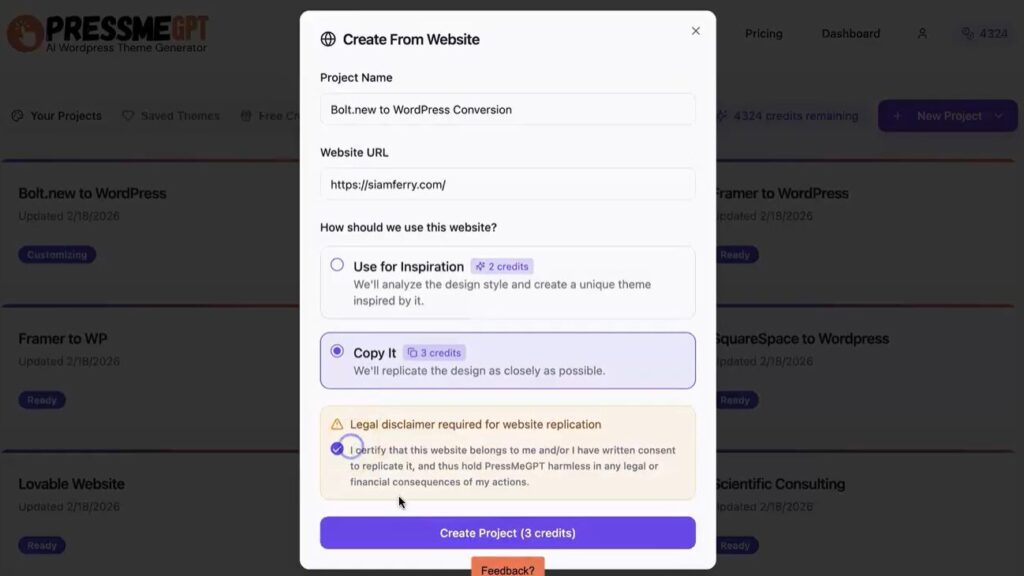
Paste the public URL of your Bolt.new project into the website field.
PressMeGPT will analyze the live page and study its structure, styling, and visual hierarchy.
The system looks at elements such as section placement, typography, spacing, colors, images, buttons, content organization, and overall page composition.
A clear, properly loaded public page will usually produce a better starting result than an unfinished or partially broken version.
Step 5: Add Custom Instructions
You do not have to create an exact copy of the original page.
Before generating the theme, you can provide additional instructions explaining what you want PressMeGPT to change or improve.
For example, you could ask it to:
- – Use a different brand color
- – Replace the existing font style
- – Make the hero section more prominent
- – Simplify the navigation
- – Reduce excessive spacing
- – Change button shapes
- – Improve mobile readability
- – Rearrange homepage sections
- – Create a cleaner visual style
- – Make the design feel more professional
This is helpful when you like the general structure of your Bolt.new project but want to improve certain areas before moving it to WordPress.
Step 6: Generate the WordPress Theme
Once the website URL and instructions are ready, click Generate Theme.
PressMeGPT will use AI to create a WordPress block theme inspired by the structure and visual style of your Bolt.new project.
Instead of manually creating containers, sections, patterns, buttons, and styling rules, the platform handles much of the initial conversion automatically.
The generated theme can include WordPress-compatible design settings such as fonts, colors, layout styles, and reusable block patterns.
This gives you a real WordPress foundation that can be edited after installation rather than a static screenshot or image-based copy.
Step 7: Refine the Design with AI
The first generated version does not have to be the final version.
You can continue refining the design inside PressMeGPT using natural-language instructions.
For example, you could write:
“Make the hero section shorter and move the main button below the description.”
Or:
“Use a darker header, increase the heading size, and reduce the spacing between the service cards.”
You can also request changes to individual sections, visual styling, layout direction, branding, and content presentation.
This prompt-based editing process can be faster than manually adjusting every block and design setting individually.
Step 8: Export the WordPress Theme
When you are satisfied with the design, export the theme from PressMeGPT.
The platform will prepare a downloadable WordPress theme file.
Save the exported ZIP file to your computer. Do not extract it before uploading it to WordPress unless specifically required.
Step 9: Install the Theme in WordPress
Log in to your WordPress dashboard and follow these steps:
- Go to Appearance
- Select Themes
- Click Add New Theme
- Click Upload Theme
- Select the ZIP file exported from PressMeGPT
- Click Install Now
After the installation is complete, you can use Live Preview to review the theme before publishing it.
When everything looks correct, click Activate.
Your Bolt.new-inspired design will now be running as a WordPress theme.
What Should You Do After Installing the Theme?
After activating the theme, review the website on desktop, tablet, and mobile devices.
You may also need to:
- – Replace placeholder content
- – Upload final images
- – Create additional pages
- – Configure menus
- – Add your site logo
- – Connect contact forms
- – Install SEO plugins
- – Configure analytics
- – Optimize images
- – Test buttons and links
- – Add legal and policy pages
PressMeGPT is currently most useful for generating the homepage design and WordPress theme foundation. Additional pages, navigation menus, blog content, and website functionality can then be added inside WordPress.
This workflow keeps the most design-intensive part of the website—the homepage—from having to be rebuilt manually.
What Does Not Automatically Convert?
It is important to understand the difference between converting a website’s design and converting its application logic.
PressMeGPT can recreate the visual structure and design direction of a live Bolt.new page, but advanced functionality may still require additional work.
For example, your project may contain:
- – User authentication
- – Custom dashboards
- – Database connections
- – API integrations
- – Dynamic calculators
- – Real-time features
- – Complex forms
- – Subscription systems
- – Custom application logic
These features may need to be rebuilt using WordPress plugins, WooCommerce extensions, third-party services, or custom development.
For standard marketing websites, business homepages, portfolios, service websites, and landing pages, the conversion process can save a significant amount of development time.
For complex web applications, PressMeGPT can still help recreate the frontend design, while the application functionality is handled separately.
Who Is This Workflow Best For?
Converting a Bolt.new project to WordPress with PressMeGPT can be especially useful for several types of users.
Founders
Founders can prototype a product or business website quickly with Bolt.new and later move the design to WordPress when they need better content management, SEO, and marketing integrations.
Freelancers
Freelancers can reduce the time spent manually rebuilding approved prototypes inside WordPress.
WordPress Agencies
Agencies can use AI-generated prototypes as a starting point and convert them into editable WordPress themes for clients.
Marketers
Marketers can create landing page concepts quickly and then move them into WordPress for analytics, SEO, forms, and campaign management.
Designers
Designers can turn a live concept into a functional WordPress foundation without manually coding the entire theme.
Benefits of Using PressMeGPT for the Conversion
The biggest benefit is speed.
A homepage often requires the most design work because it establishes the website’s visual identity, navigation, messaging, colors, typography, and layout system.
PressMeGPT helps convert that design into a WordPress block theme without requiring you to rebuild every section individually.
It also provides several practical advantages:
- No need to begin with a blank theme
- Less repetitive design work
- Prompt-based revisions
- WordPress block compatibility
- Editable theme styles
- Reusable patterns
- Faster client delivery
- Greater ownership of the final website
You still have the freedom to customize and expand the website inside WordPress after the theme has been installed.
Final Thoughts
Bolt.new is an excellent platform for turning ideas into working designs quickly. WordPress provides the ownership, flexibility, SEO control, and content management features needed for long-term growth.
With PressMeGPT, you can connect these two workflows.
Start by building and publishing your idea with Bolt.new. Add the live URL to PressMeGPT, generate a WordPress block theme, refine it with prompts, and export it directly to your WordPress website.
You may still need plugins or custom development for advanced application features, but the design and homepage structure no longer have to be recreated from the beginning.
Build fast.
Convert smart.
Scale with WordPress.
Visit PressMeGPT.com to create a free account and convert your live website into an AI-generated WordPress theme.