
If you’ve built a website or web app in Replit and now want to move it to WordPress without rebuilding everything from scratch, this tutorial will walk you through the process.
Replit is a browser-based development environment that allows you to write, test, and deploy code directly from the cloud. It’s a great platform for quickly prototyping websites, experimenting with frameworks, building static sites, and even launching full-stack applications.
But while Replit is excellent for rapid development, WordPress can be a better choice when you need easier content management, more control over SEO, plugin integrations, client-friendly editing, and a platform that can scale with your marketing needs.
The challenge is that manually recreating a custom Replit website inside WordPress can take hours. You may need to rebuild page layouts, rewrite CSS, recreate components, and adjust the design for your WordPress theme.
In this tutorial, I’ll show you how to use PressMeGPT to convert a live Replit website to WordPress theme using AI.
You can also watch the full walkthrough here:
Why Move a Replit Website to WordPress?
Replit and WordPress are designed for different types of workflows.
Replit is ideal when you want to build and deploy something quickly. Developers can write custom code, test ideas, experiment with frameworks, and create highly customized experiences.
WordPress, on the other hand, is built around content management and long-term website maintenance.
Moving your Replit website to WordPress can make sense if you want:
- – Easier content editing for non-developers
- – Better control over SEO
- – Access to thousands of WordPress plugins
- – Easier integration with marketing tools
- – A familiar dashboard for clients
- – More control over themes and website structure
- – A scalable CMS for blogs, landing pages, and marketing websites
Instead of manually rebuilding the front end inside WordPress, you can use AI to speed up the conversion process.
Step-by-Step: Convert Your Replit Website into WordPress
Step 1: Deploy Your Replit Website
Before starting the conversion, make sure your Replit project is publicly accessible.
PressMeGPT needs a live website URL so it can analyze the design and structure of your site.
Open your Replit project, deploy it, and copy the public URL of the live website.
Make sure the link can be opened without requiring a login or private access.
Step 2: Go to PressMeGPT
Visit PressMeGPT.com.
Create a free account if you are a new user, or sign in to your existing account.
After registering, verify your email address if required. Once your account is active, you will be able to access the PressMeGPT dashboard.
Step 3: Create a New Project
Inside the dashboard, click New Project.
You will see different options for creating a WordPress theme.
Choose From Website.
This option allows PressMeGPT to analyze an existing live website and use its design as the starting point for a WordPress theme.
Step 4: Add Your Replit Website URL
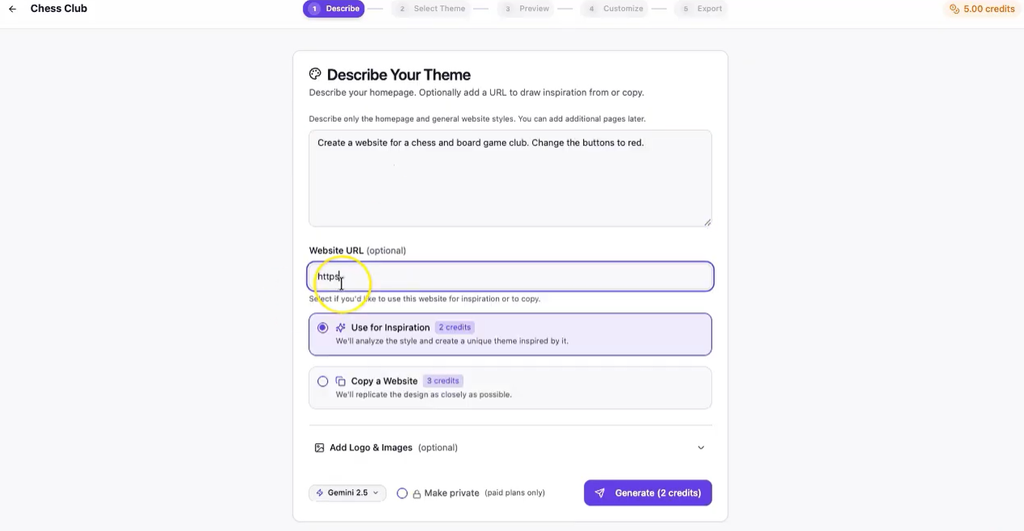
Paste the public URL of your deployed Replit website into the website field.
PressMeGPT will use this link to analyze the front-end design of your project.
Depending on the website, the AI can examine elements such as:
- – Page structure
- – Sections
- – Typography
- – Spacing
- – Colors
- – Buttons
- – Visual hierarchy
- – Navigation
- – Content layout
- – Responsive structure
The goal is to recreate the overall design and structure in a WordPress-compatible format.
Step 5: Add Custom Instructions
Before generating the theme, you can give the AI additional instructions.
This is useful if you do not want an exact copy of the existing website and would like to improve parts of the design during the conversion.
For example, you could ask PressMeGPT to:
- – Simplify the navigation
- – Update the color palette
- – Improve mobile responsiveness
- – Change button styles
- – Modify the hero section
- – Adjust spacing
- – Reorganize content sections
- – Update branding
- – Improve calls to action
Giving clear instructions at this stage can help you get closer to the final result without making as many changes later.
Step 6: Generate the WordPress Theme
Once the URL and instructions are ready, click Generate Theme.
PressMeGPT will analyze your Replit website and generate a WordPress-ready theme based on its layout and visual structure.
Instead of manually copying HTML, CSS, components, and page sections into a WordPress theme, the AI handles much of the conversion process for you.
Step 7: Review the Generated Theme
After the theme has been generated, review the result carefully.
Check important areas such as:
- – Header and navigation
- – Hero section
- – Typography
- – Buttons
- – Columns
- – Images
- – Section spacing
- – Footer
- – Mobile layout
If something does not look the way you want, you can refine the theme using additional prompts.
For example, you could say:
“Make the hero section more compact.”
“Change the primary button style.”
“Reduce the spacing between sections.”
“Turn this section into a three-column layout.”
“Make the call-to-action more prominent.”
This allows you to continue refining the design without manually editing every part of the theme.
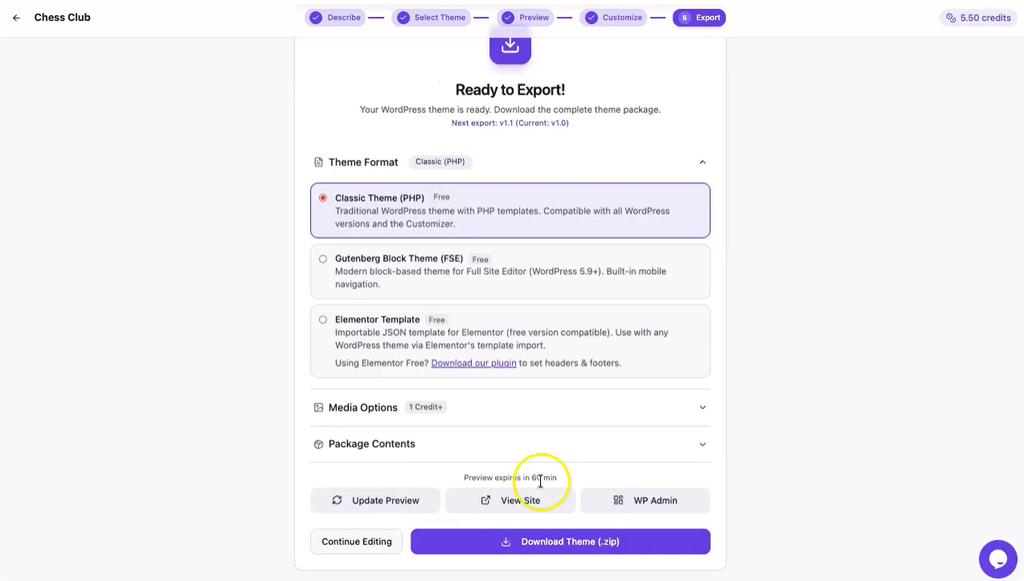
Step 8: Export the WordPress Theme
Once you are happy with the result, export the theme.
PressMeGPT will provide you with a downloadable WordPress theme file.
In most cases, this will be provided as a ZIP file that can be uploaded directly to WordPress.
How to Install the Theme in WordPress
After downloading your generated theme, you can install it from your WordPress dashboard.
Step 1: Log In to WordPress
Open your WordPress admin dashboard.
This is usually available at:
yourwebsite.com/wp-admin
Log in using your WordPress administrator account.
Step 2: Open the Themes Section
From the WordPress dashboard, go to:
Appearance → Themes
This is where you can view and manage the themes installed on your website.
Step 3: Upload the Theme
Click Add New, then select Upload Theme.
Click Choose File or Browse and select the ZIP file you downloaded from PressMeGPT.
Then click Install Now.
Step 4: Preview the Theme
After WordPress installs the theme, you can preview it before making it live.
Use Live Preview to check how the design looks with your existing WordPress content.
Pay particular attention to navigation, page layouts, typography, responsive behavior, and any existing plugins that may affect the design.
Step 5: Activate the Theme
If everything looks correct, click Activate.
Your AI-generated theme will now become the active design for your WordPress website.
What Gets Converted?
This workflow is mainly designed to convert the front-end design and structure of your Replit project.
That can include things such as:
- Page layouts, Website sections, Typography, Colors, Buttons, Navigation, Headers, Footers, Content blocks, Visual styling
However, not every part of a Replit application can automatically become part of a WordPress theme.
Why This Workflow Is Useful
Traditionally, moving a custom-coded website into WordPress could involve manually recreating templates, converting HTML into PHP theme files, rewriting styles, and adapting components to the WordPress structure.
AI can reduce a large part of that repetitive work.
The workflow becomes much simpler:
Prototype in Replit → Convert with AI → Refine the Theme → Install on WordPress
This lets you use Replit for what it does best—fast experimentation and development—while still taking advantage of the WordPress ecosystem for long-term website management.
Final Thoughts
Replit is a powerful platform for building and testing ideas quickly, while WordPress remains one of the most flexible platforms for managing content, SEO, plugins, and marketing websites.
With a tool like PressMeGPT, you do not necessarily have to choose one platform from the beginning.
You can build your initial concept in Replit, use AI to convert the front-end design into a WordPress theme, and then continue managing and scaling the website inside WordPress.
In short:
Prototype in Replit.
Convert with AI.
Scale with WordPress.