In this post we’ll walk you through step-by-step how easy it is to migrate nearly any website to a WordPress theme with AI in minutes.
Which website providers can I migrate a website to WordPress from?
We’ve tested several popular website providers including Wix, Squarespace, Framer, and WebFlow, WordPress.com, and AI website creation tools including Lovable, Base44, Claude, Bolt.new, Gemini, and many more.
Check our Directory of AI website builders and website providers for a full list of website providers compatible with PressMeGPT.
For you visual learners, here is a video tutorial:
Migrate Website to WordPress – Step-by-Step Guide
Step 1) Create a free account or sign in
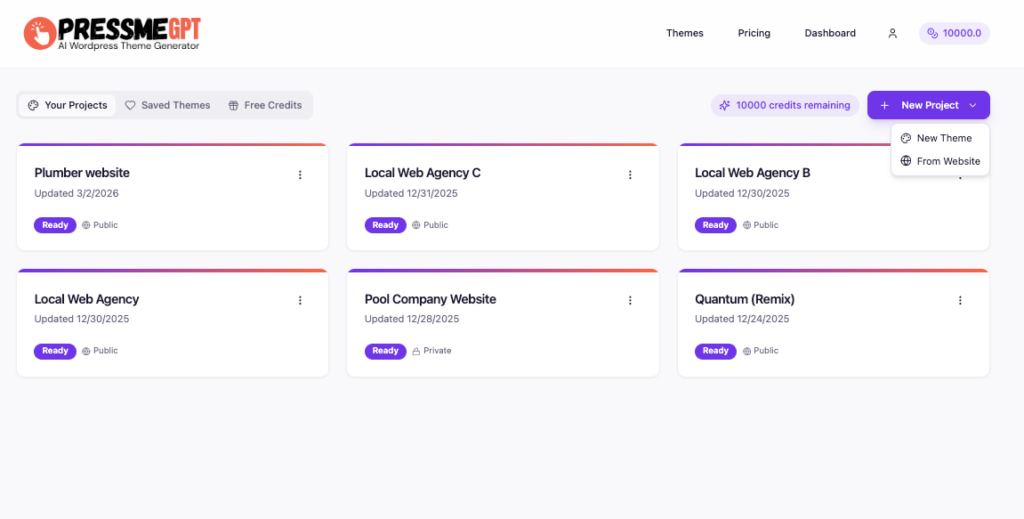
Step 2) From the dashboard, click “New Project” > “From Website”
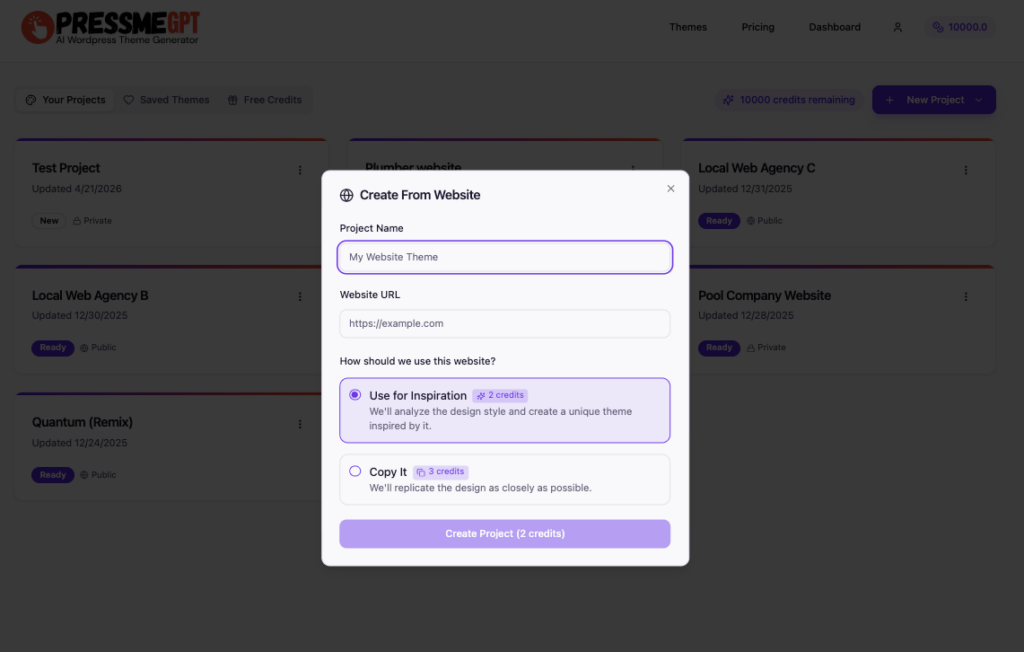
Step 3) Enter the website to copy or draw inspiration from and a detailed description of the website you’d like to create including colors, purpose, optionally logo, and images.
Optionally set privacy restrictions if you are on a paid plan.
Step 4) For copies, the AI website generator will create 1 version of the website.
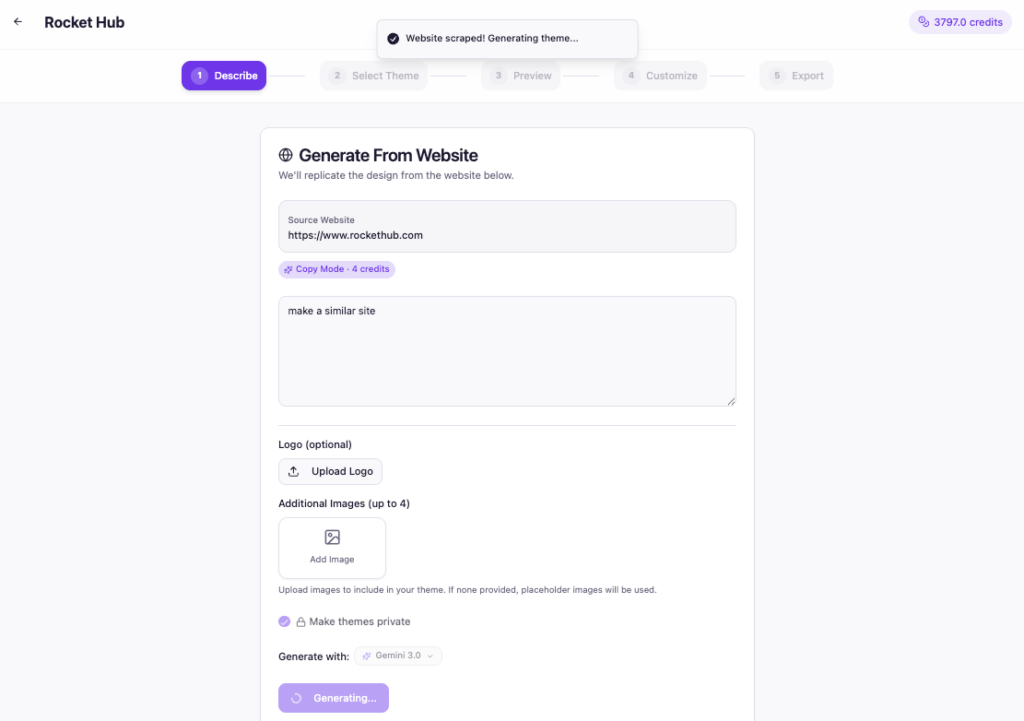
Note: This can take 3-6 minutes depending on the load on the server and your internet connectivity.
Step 5) Customize the web design with prompts and controls.
The customize screen will allow you to make changes to your selected theme with built in controls including fonts, colors, icons, and images, and/or natural language such as:
- Make the header sticky.
- Change the photo placeholder 4 to the attached image.
- Add this logo.
- Add a testimonials section.
- Change all button colors to purple.
- etc.
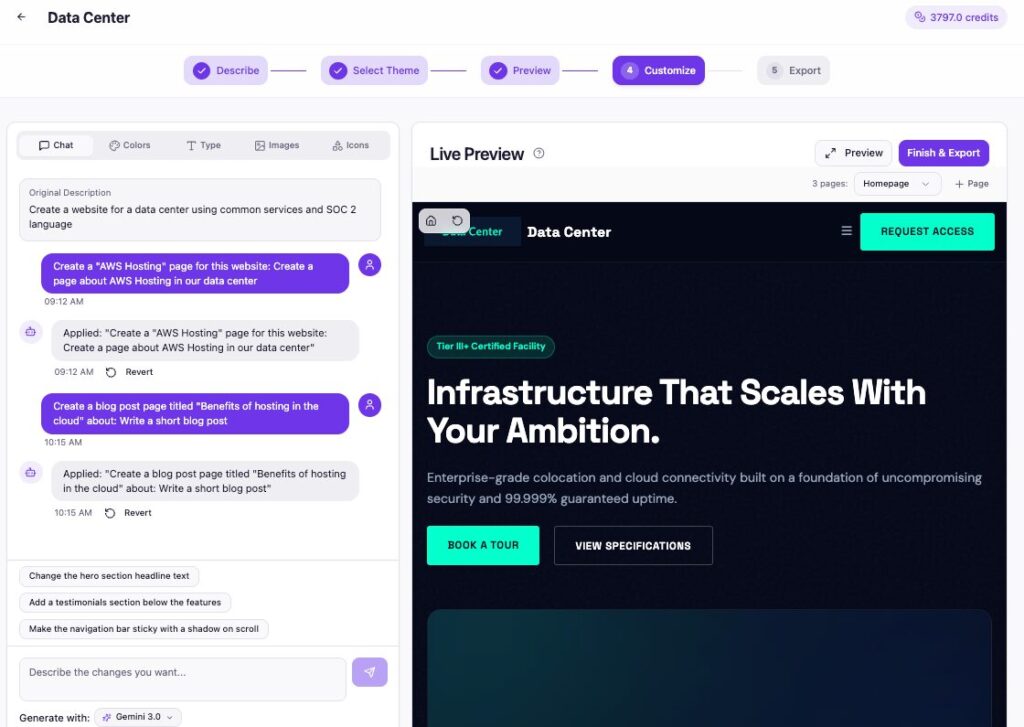
Step 6) Add pages or posts
Once you have a homepage you like, you can optionally add additional pages with the “+ Pages” button. Simply click it, name and describe the page or post, and generate.
Toggle between pages and posts with the dropdown next to “+ Pages” in the customize or preview screen.
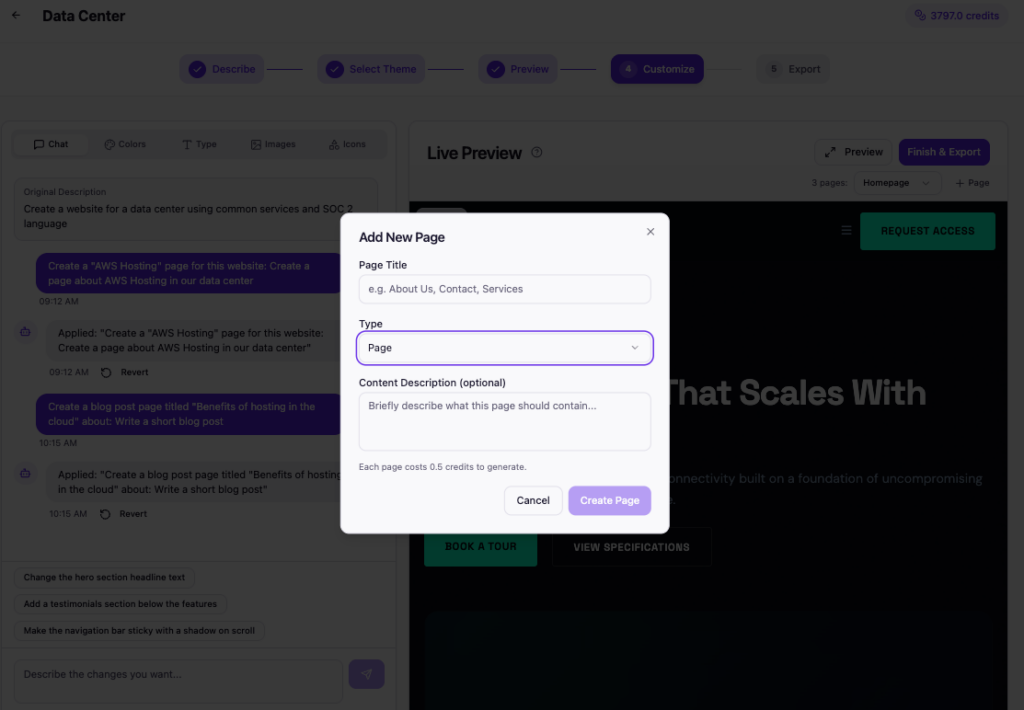
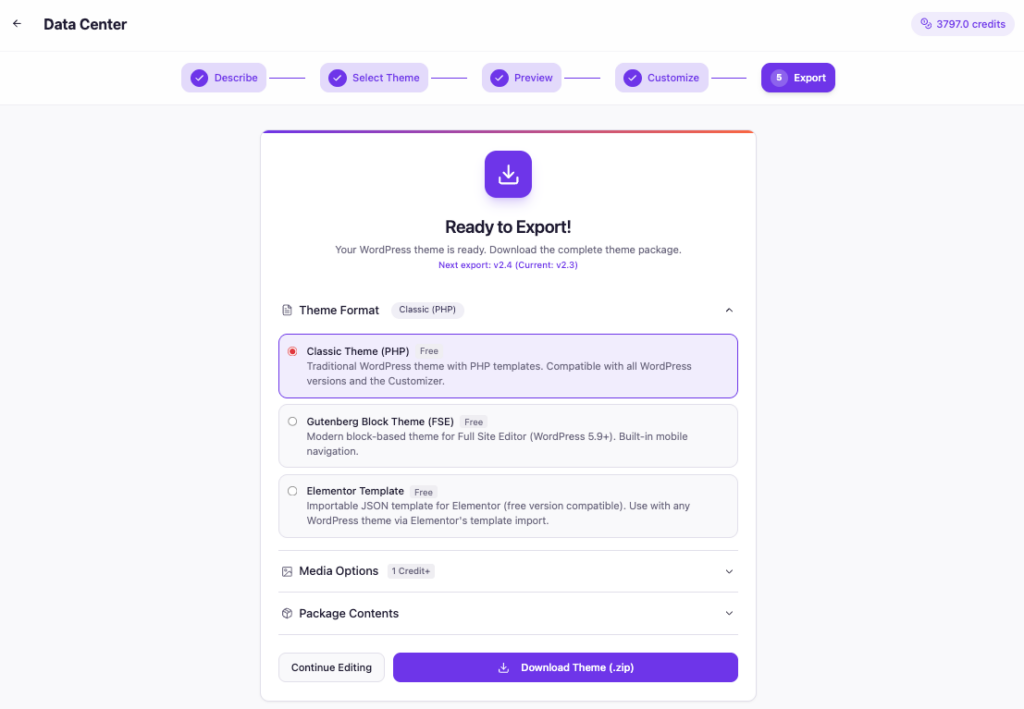
Step 7) Export theme or template
Now that you have a site that you like you can export in popular WordPress themes or templates including: Classic, Gutenberg, and Elementor.
Step 8) Optionally Migrate Media including images and videos to WordPress
Currently exports have remote paths for image and video. For example, an image source may look something like: https://images.unsplash.com/path-to-stock-photo.
If you select this option it may cost credits but it will automatically download all media to a separate zip for import into WordPress AND it will change the path of the image to a relative local path so the image loads properly.
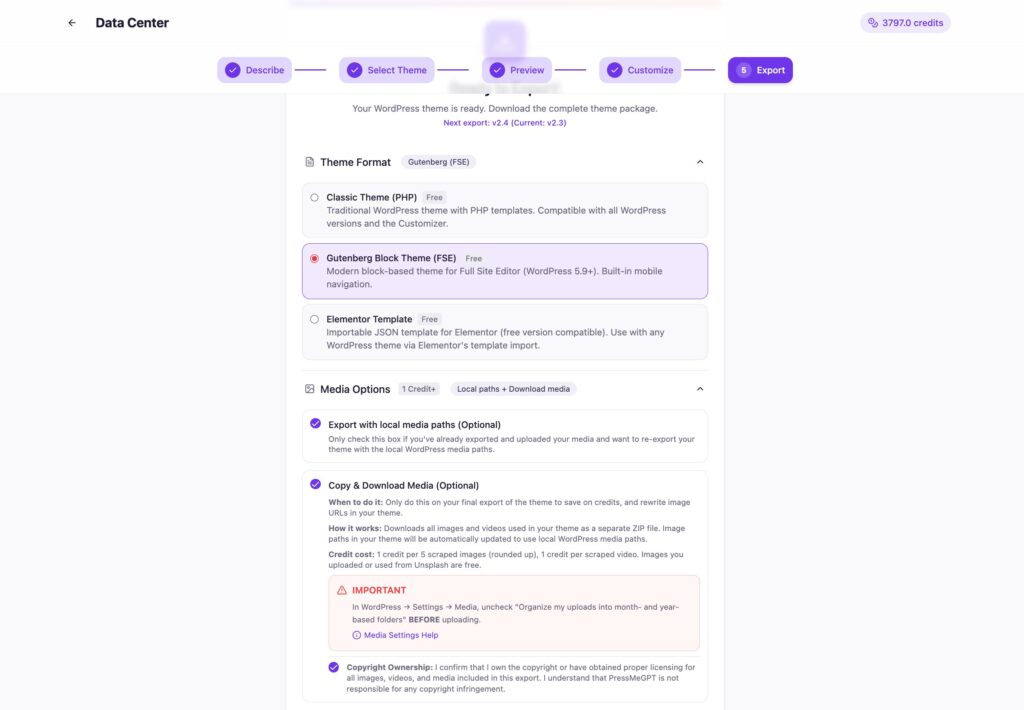
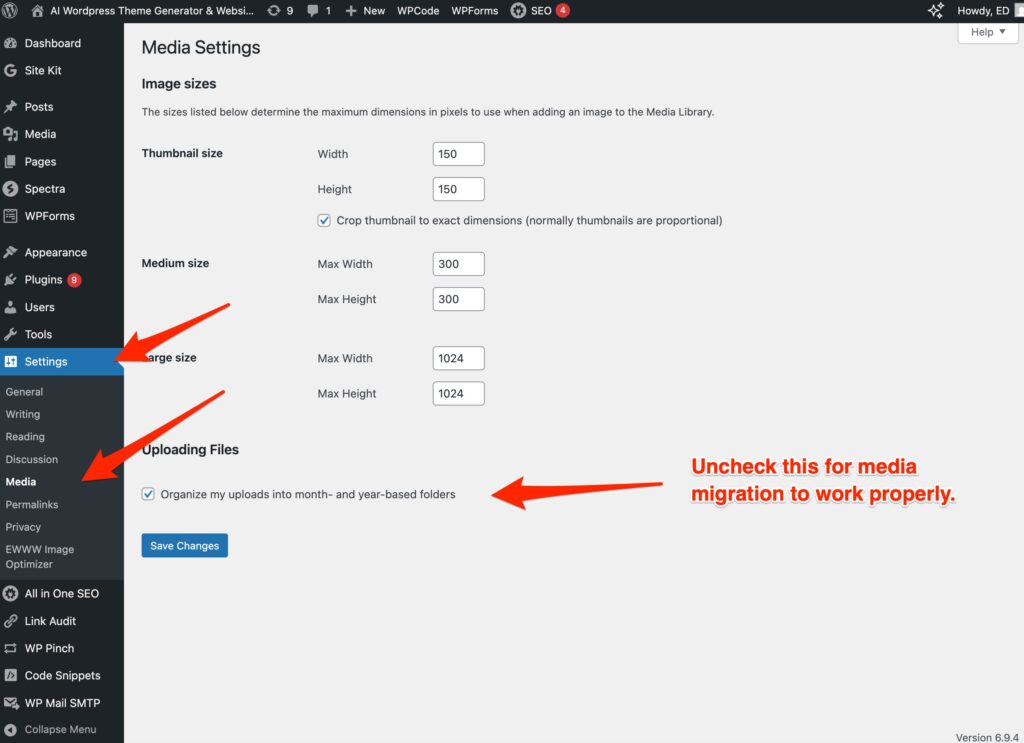
NOTE: You must uncheck “Organize my uploads into month- and year-based folders” in WordPress > Settings > Media BEFORE you upload images or install the theme in order for media migrations to function properly.
For more detailed tutorials, videos, and specifics, check out our “how to” section of our blog and knowledge base.