When you are designing a website with AI, the design isn’t limited to just the homepage. Elements like the header, footer, logo, and styles carries through to the other pages AND posts on the site. This is exactly why we added a multi-page builder into PressMeGPT.
Now users can not only design the homepage (often the starting point and most popular page on a website) but they can also create additional pages and even blog posts that share the HTML and CSS elements as a normal website would.
To create a new post
In your PressMeGPT project
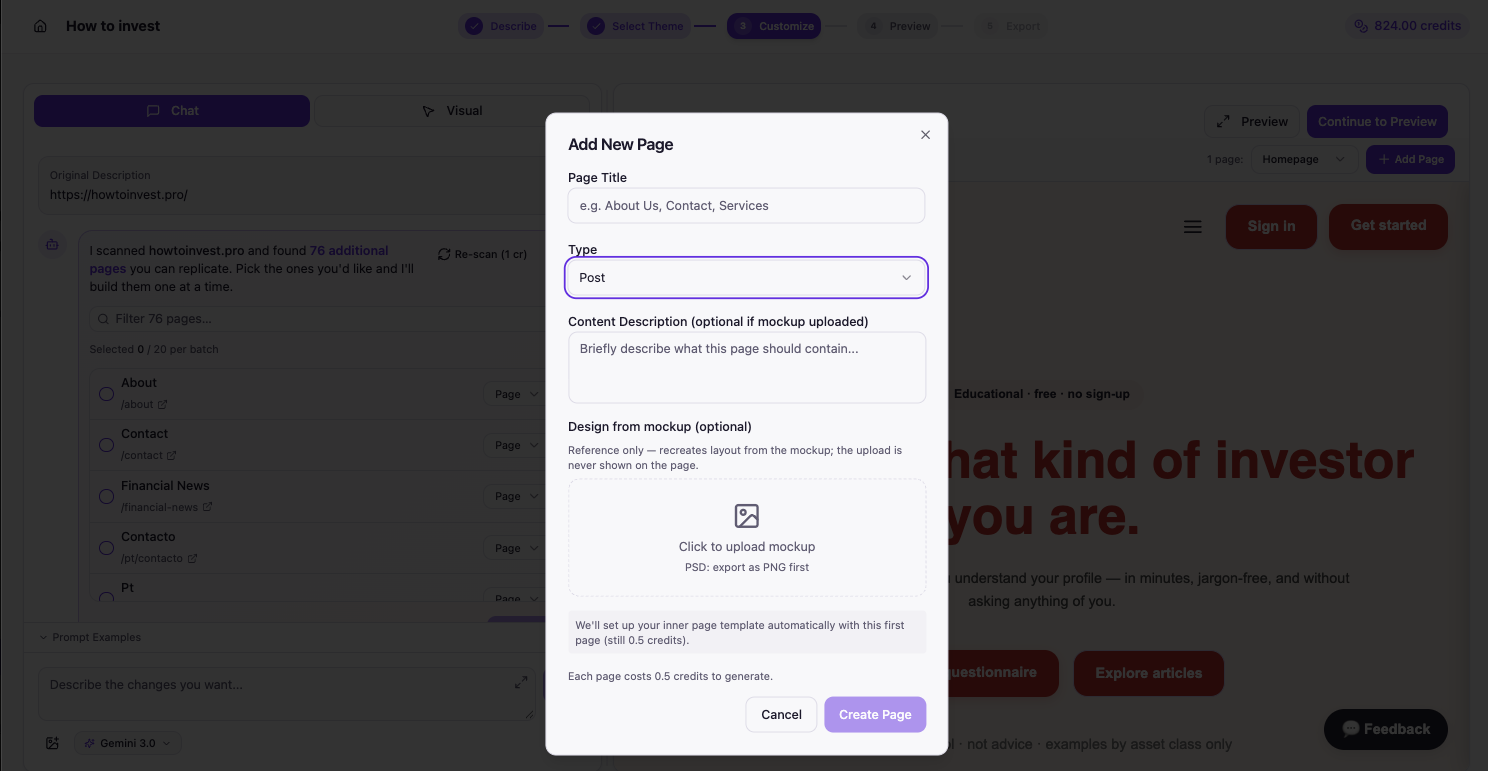
Once your theme is generated and selected, on the customize screen where the AI chat is, you’ll find a “New Page” button near the top right of the preview pane. Click this, then select “Post” in the dropdown (default is “Page”) and describe what you’d like the post to say, then enter a name for it. AI will create it based on your prompt.
You can always use the visual builder and/or describe any changes you’d like in the prompt interface to the left or modify the post further once installed on WordPress using the method below.
In WordPress site
Let’s say you want to create a new post on your WordPress site once you’ve exported the theme and installed it on your server.
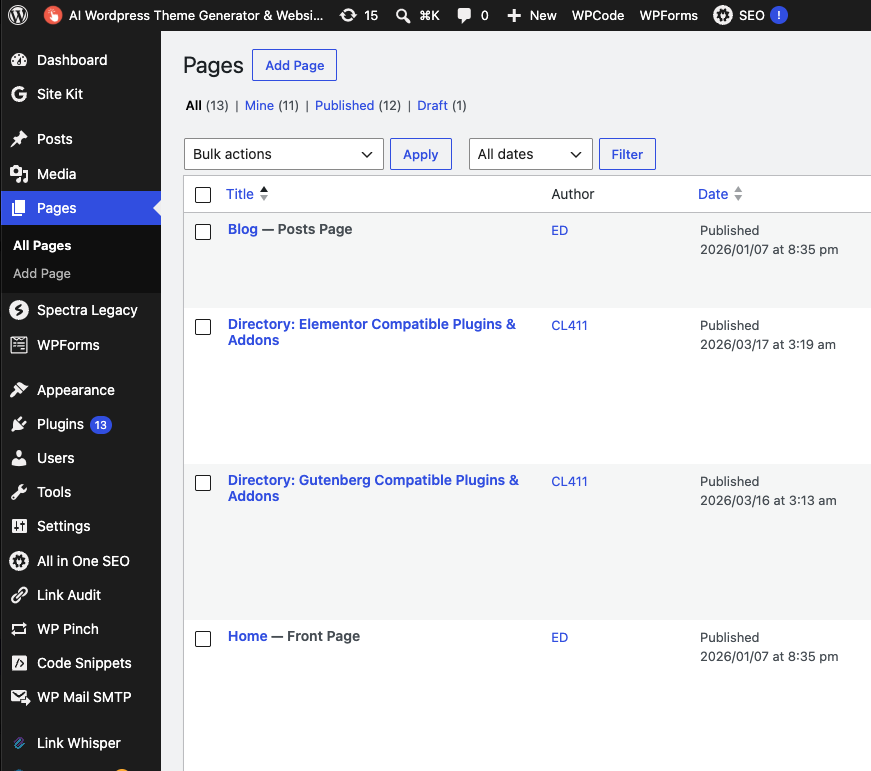
Visit your WordPress admin (usually found at www.your-site.com/wp-admin/) and in the left panel select “Posts” > “Add Post” which functions similar to the Page menu displayed below. Here you’ll be able to create additional blog posts for your site.